Smart Waiting: Why waitForTimeout Is a Trap
The difference between waiting for time and waiting for state, and why only one of them scales.
July 30, 202614 min read
Smart Waiting: Why waitForTimeout Is a Trap
Introduction
One of the most common ways to make an unstable UI test appear reliable is to add a fixed delay.
await page.waitForTimeout(5000);
The test waits for five seconds, the page has more time to load, and the failure seems to disappear.
At first, this feels like a practical solution.
In reality, waitForTimeout() often creates a slower, less reliable, and harder-to-maintain automation suite.
The problem is simple: a fixed delay does not wait for the application to become ready. It only waits for time to pass.
In this article, we will explore why hardcoded waits are a trap, how Playwright's auto-waiting works, and how to replace fixed delays with meaningful conditions.
What Is waitForTimeout?
Playwright provides waitForTimeout() to pause execution for a specific amount of time.
Example:
await page.waitForTimeout(3000);
This means:
Pause the test

↓

Wait exactly 3 seconds

↓

Continue execution
The test does not check whether:
- The page finished loading
- The API response completed
- The button became visible
- The animation ended
- The modal disappeared
- The expected data appeared
It only waits for three seconds.
Why Fixed Waiting Looks Useful
Imagine a test that clicks a search button and immediately reads the results.
await page
  .getByRole('button', {
    name: 'Search',
  })
  .click();

const resultText = await page
  .getByTestId('search-result')
  .textContent();
Sometimes the result is not ready yet, and the test fails.
A quick fix might be:
await page
  .getByRole('button', {
    name: 'Search',
  })
  .click();

await page.waitForTimeout(3000);

const resultText = await page
  .getByTestId('search-result')
  .textContent();
The test may now pass locally.
But the delay has not solved the synchronization problem. It has only hidden it.
The First Problem: The Wait May Be Too Short
Suppose the application usually responds in two seconds.
A three-second wait seems safe.
However, in CI the same operation may take four or five seconds because of:
- Slower machines
- Network latency
- Shared infrastructure
- Browser startup overhead
- Backend load
- Temporary service delays
The fixed wait expires after three seconds, and the test still fails.
Expected loading time: 2 seconds

CI loading time: 5 seconds

Fixed wait: 3 seconds

Result: Failure
The test remains flaky.
The Second Problem: The Wait May Be Too Long
Now suppose the application completes in 500 milliseconds.
The test still waits for three full seconds.
Application ready: 0.5 seconds

Fixed wait: 3 seconds

Wasted time: 2.5 seconds
That may not seem significant in one test.
But consider 500 tests with two unnecessary three-second waits each.
500 tests

×

2 waits

×

3 seconds

=

3,000 seconds
That is approximately 50 minutes of waiting without testing anything.
Hardcoded waits make automation suites slower as they grow.
Time Is Not an Application State
The core issue with waitForTimeout() is that elapsed time does not prove readiness.
After five seconds, the application could still be:
- Loading
- Showing an overlay
- Waiting for an API
- Rendering a table
- Processing a transaction
- Reconnecting to a service
- Displaying an animation
A better question is not:
How long should the test wait?
The better question is:
What condition proves the application is ready?
This mindset is the foundation of smart waiting.
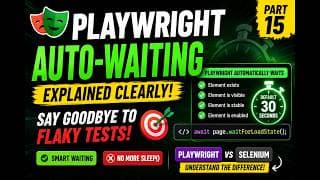
Playwright Already Auto-Waits
Playwright automatically waits before performing most actions.
For example:
await page
  .getByRole('button', {
    name: 'Submit',
  })
  .click();
Before clicking, Playwright checks whether the element is:
- Attached to the DOM
- Visible
- Stable
- Enabled
- Able to receive pointer events
This means you usually do not need:
const submitButton = page.getByRole(
  'button',
  {
    name: 'Submit',
  },
);

await submitButton.waitFor({
  state: 'visible',
});

await submitButton.click();
In many cases, this is enough:
await submitButton.click();
The click action already waits for the button to become actionable.
Auto-Waiting Does Not Wait for Everything
Playwright's auto-waiting is powerful, but it does not automatically understand every business condition.
For example, clicking a button may start an API request:
await page
  .getByRole('button', {
    name: 'Generate report',
  })
  .click();
The click may succeed immediately, but the report may still be loading.
Playwright can ensure the button is clickable.
It cannot automatically know whether the report is complete unless the test waits for a meaningful signal.
That signal may be:
- A loading spinner becoming hidden
- A success message appearing
- A network response completing
- A table receiving rows
- A URL changing
- A download starting
- A button becoming enabled
Wait for Visibility
Instead of:
await page.waitForTimeout(3000);

await page
  .getByRole('button', {
    name: 'Continue',
  })
  .click();
Use:
const continueButton = page.getByRole(
  'button',
  {
    name: 'Continue',
  },
);

await continueButton.waitFor({
  state: 'visible',
});

await continueButton.click();
Or simply:
await page
  .getByRole('button', {
    name: 'Continue',
  })
  .click();
if no separate state validation is required.
Wait for an Element to Disappear
Loading indicators are common synchronization signals.
Avoid:
await page.waitForTimeout(5000);
Use:
await page
  .getByTestId('loading-spinner')
  .waitFor({
    state: 'hidden',
  });
This means:
Wait until loading is actually finished

↓

Continue immediately
If loading takes one second, the test waits one second.
If loading takes four seconds, the test waits four seconds.
This is both faster and more reliable.
Use Web-First Assertions
Playwright assertions automatically retry until they pass or reach the configured timeout.
Example:
await expect(
  page.getByText('Payment successful'),
).toBeVisible();
This is much better than:
await page.waitForTimeout(3000);

const isVisible = await page
  .getByText('Payment successful')
  .isVisible();

expect(isVisible).toBe(true);
The isVisible() check runs immediately.
The web-first assertion retries.
Other useful assertions include:
await expect(locator).toBeVisible();

await expect(locator).toBeHidden();

await expect(locator).toHaveText(
  'Completed',
);

await expect(locator).toContainText(
  'Success',
);

await expect(locator).toHaveCount(5);

await expect(page).toHaveURL(
  /dashboard/,
);
Wait for a Network Response
Sometimes the clearest signal is the backend response.
Example:
const responsePromise =
  page.waitForResponse(
    response =>
      response.url().includes(
        '/api/orders',
      ) &&
      response.status() === 200,
  );

await page
  .getByRole('button', {
    name: 'Place order',
  })
  .click();

const response =
  await responsePromise;

expect(response.ok()).toBeTruthy();
It is important to create the wait before the click.
Correct:
const responsePromise =
  page.waitForResponse(
    '**/api/orders',
  );

await submitButton.click();

await responsePromise;
Risky:
await submitButton.click();

await page.waitForResponse(
  '**/api/orders',
);
The response may complete before Playwright starts waiting for it.
Wait for Navigation
Avoid:
await loginButton.click();

await page.waitForTimeout(5000);
Use:
await loginButton.click();

await expect(page).toHaveURL(
  /dashboard/,
);
Or when a navigation event is explicitly needed:
await Promise.all([
  page.waitForURL(
    '**/dashboard',
  ),
  loginButton.click(),
]);
The test now waits for the destination rather than an arbitrary amount of time.
Wait for a Specific UI State
Suppose a cash-out button becomes available only after a betting round begins.
Avoid:
await betButton.click();

await page.waitForTimeout(7000);

await cashOutButton.click();
Use:
await betButton.click();

await cashOutButton.waitFor({
  state: 'visible',
  timeout: 7000,
});

await cashOutButton.click();
This waits for the actual required state.
If the button appears after two seconds, the test continues immediately.
Wait for Data to Change
Sometimes an element is visible but still contains old or placeholder data.
Example:
await expect(
  page.getByTestId('balance'),
).not.toHaveText('Updating...');
Or:
await expect(
  page.getByTestId('balance'),
).toHaveText(/\d+/);
For a balance that initially shows zero while updating:
const balance =
  page.getByTestId('balance');

await expect(balance).not.toHaveText(
  'Updating...',
);

await expect(balance).toHaveText(
  /[1-9]\d*/,
);
This is much more reliable than waiting ten seconds and hoping the value has changed.
Wait for a Button to Become Enabled
Avoid:
await page.waitForTimeout(2000);

await saveButton.click();
Use:
await expect(
  saveButton,
).toBeEnabled();

await saveButton.click();
This is useful when the button becomes active only after:
- Required fields are filled
- Validation completes
- Data finishes loading
- A checkbox is selected
Wait for a Table to Load
Avoid:
await page.waitForTimeout(5000);
Use:
const rows =
  page.getByRole('row');

await expect(rows).toHaveCount(11);
Or wait for a specific record:
await expect(
  page.getByRole('row', {
    name: /Alice Johnson/,
  }),
).toBeVisible();
The test verifies the expected result directly.
Wait for a Download
Avoid clicking and then waiting several seconds.
Use:
const downloadPromise =
  page.waitForEvent('download');

await page
  .getByRole('button', {
    name: 'Export',
  })
  .click();

const download =
  await downloadPromise;

await download.saveAs(
  'downloads/report.xlsx',
);
The test waits for the actual download event.
Wait for a New Page or Popup
Avoid:
await openReportButton.click();

await page.waitForTimeout(3000);
Use:
const popupPromise =
  page.waitForEvent('popup');

await openReportButton.click();

const popup =
  await popupPromise;

await popup.waitForLoadState();
Again, the test waits for a real browser event rather than time.
Use expect.poll() for Custom Conditions
Sometimes the condition is not directly represented by a locator.
For example, you may need to poll an API until a transaction reaches a completed state.
await expect
  .poll(
    async () => {
      const response =
        await request.get(
          `/api/transactions/${transactionId}`,
        );

      const body =
        await response.json();

      return body.status;
    },
    {
      timeout: 30_000,
    },
  )
  .toBe('COMPLETED');
This is better than:
await page.waitForTimeout(30_000);
The poll ends as soon as the expected state is reached.
Use toPass() for Retriable Blocks
For a more complex condition:
await expect(
  async () => {
    const response =
      await request.get(
        `/api/orders/${orderId}`,
      );

    expect(response.status()).toBe(
      200,
    );

    const body =
      await response.json();

    expect(body.status).toBe(
      'CONFIRMED',
    );
  },
).toPass({
  timeout: 30_000,
});
This retries the entire block until it passes.
Use this carefully and only when the operation is safe to repeat.
Avoid Waiting for networkidle by Default
Some testers use:
await page.waitForLoadState(
  'networkidle',
);
This can be unreliable for modern applications because many pages continuously use:
- WebSockets
- Analytics
- Background polling
- Live notifications
- Tracking requests
A page may never become truly idle.
Instead, wait for a specific user-visible or business-relevant state.
For example:
await expect(
  page.getByRole('heading', {
    name: 'Dashboard',
  }),
).toBeVisible();
This proves that the feature needed by the test is ready.
Avoid Huge Timeouts
Another common workaround is increasing timeouts everywhere.
await button.click({
  timeout: 100000,
});
A 100-second timeout does not make the test more stable.
It may only make failures much slower.
Use reasonable global defaults:
export default defineConfig({
  timeout: 60_000,

  expect: {
    timeout: 10_000,
  },

  use: {
    actionTimeout: 15_000,
    navigationTimeout: 30_000,
  },
});
Then override the timeout only for operations that are genuinely slow.
await expect(
  reportPage.completeMessage,
).toBeVisible({
  timeout: 60_000,
});
The timeout should communicate that a specific operation is expected to take longer.
Do Not Stack Multiple Waits Without Purpose
This pattern is often unnecessary:
await button.waitFor({
  state: 'attached',
});

await button.waitFor({
  state: 'visible',
});

await expect(button).toBeEnabled();

await button.click();
In most cases:
await button.click();
is enough.
Use additional waits only when each one verifies a meaningful state required by the test.
Too many waits make the code harder to understand and may hide the real synchronization problem.
A Common Anti-Pattern
Consider this test:
await page
  .getByRole('button', {
    name: 'Submit',
  })
  .click();

await page.waitForTimeout(5000);

await expect(
  page.getByText('Success'),
).toBeVisible();
The test waits twice:
- Five seconds through
waitForTimeout() - Again through the retrying assertion
The fixed delay is unnecessary.
Better:
await page
  .getByRole('button', {
    name: 'Submit',
  })
  .click();

await expect(
  page.getByText('Success'),
).toBeVisible();
The assertion already waits for the message.
Smart Waiting in Page Objects
Synchronization can be encapsulated inside meaningful Page Object methods.
Example:
export class CheckoutPage {
  constructor(
    private readonly page: Page,
  ) {}

  private get placeOrderButton() {
    return this.page.getByRole(
      'button',
      {
        name: 'Place order',
      },
    );
  }

  private get loadingSpinner() {
    return this.page.getByTestId(
      'checkout-loading',
    );
  }

  async placeOrder(): Promise<void> {
    await this.placeOrderButton.click();

    await this.loadingSpinner.waitFor({
      state: 'hidden',
    });
  }
}
The test remains readable:
await checkoutPage.placeOrder();

await expect(
  checkoutPage.successMessage,
).toBeVisible();
The Page Object handles the technical synchronization.
The test verifies the business result.
Smart Waiting for Dynamic Buttons
Consider this workflow:
await betButton.click();

await cancelButton.waitFor({
  state: 'visible',
  timeout: 100_000,
});

await cashOutButton.waitFor({
  state: 'visible',
  timeout: 7_000,
});
If cashOutButton sometimes needs one additional retry, avoid adding an unconditional seven-second delay.
A controlled retry can be used:
try {
  await cashOutButton.waitFor({
    state: 'visible',
    timeout: 7_000,
  });
} catch {
  await cashOutButton.waitFor({
    state: 'visible',
    timeout: 7_000,
  });
}
However, this should only be used when the application has a known two-stage transition.
A cleaner approach may be to wait for the business state that controls the button:
await expect(
  gameStatus,
).toHaveText('In Progress', {
  timeout: 14_000,
});

await expect(
  cashOutButton,
).toBeVisible();
Waiting for the real state usually produces better diagnostics.
When Is waitForTimeout Acceptable?
waitForTimeout() is not forbidden.
There are a few legitimate use cases.
Debugging
await page.waitForTimeout(5000);
This can be useful temporarily while observing the browser locally.
It should usually be removed before committing the test.
Testing Time-Based Behaviour
For example, testing an automatic logout after a specific period may genuinely require elapsed time.
Even then, consider whether the application clock can be mocked or controlled.
Waiting for an External System With No Signal
Sometimes an external service provides no API, event, or UI status that can be observed.
A fixed delay may be the only available option.
However, it should be:
- Documented
- Isolated
- Used as a last resort
- Kept as short as possible
Visual Demonstrations
A delay may be useful in demonstration scripts where a human needs time to observe each action.
That is different from production test automation.
Diagnosing Flaky Wait Problems
When a test fails intermittently, do not immediately add a delay.
Investigate the sequence:
Action

↓

Expected application event

↓

Actual application event

↓

Test synchronization

↓

Failure evidence
Review:
- Playwright Trace
- Screenshots
- Videos
- Network requests
- Console logs
- Element state
- Loading indicators
- Duplicate elements
- API response timing
Ask:
- Did the locator match the correct element?
- Was the element visible but covered?
- Did the API fail?
- Did the application finish loading?
- Was the test waiting for the wrong signal?
- Did another worker modify the same data?
The correct fix depends on the root cause.
Practical Refactoring Examples
Example 1: Waiting for a Modal
Before:
await deleteButton.click();

await page.waitForTimeout(2000);

await confirmButton.click();
After:
await deleteButton.click();

const modal =
  page.getByRole('dialog');

await expect(modal).toBeVisible();

await modal
  .getByRole('button', {
    name: 'Confirm',
  })
  .click();
Example 2: Waiting for Search Results
Before:
await searchInput.fill('Laptop');

await page.keyboard.press('Enter');

await page.waitForTimeout(5000);

await expect(
  productCards,
).toHaveCount(10);
After:
await searchInput.fill('Laptop');

await page.keyboard.press('Enter');

await expect(
  productCards,
).toHaveCount(10);
The assertion handles the wait.
Example 3: Waiting for a Balance Update
Before:
await depositButton.click();

await page.waitForTimeout(10_000);

const balanceText =
  await balance.textContent();
After:
const previousBalance =
  await balance.textContent();

await depositButton.click();

await expect(balance).not.toHaveText(
  previousBalance ?? '',
  {
    timeout: 10_000,
  },
);
The test waits for the value to actually change.
Example 4: Waiting for a Report
Before:
await generateReportButton.click();

await page.waitForTimeout(15_000);

await downloadButton.click();
After:
await generateReportButton.click();

await expect(
  page.getByText(
    'Report generated successfully',
  ),
).toBeVisible({
  timeout: 15_000,
});

await downloadButton.click();
Example 5: Waiting for API and UI Together
const responsePromise =
  page.waitForResponse(
    response =>
      response.url().includes(
        '/api/profile',
      ) &&
      response.status() === 200,
  );

await saveButton.click();

await responsePromise;

await expect(
  successToast,
).toBeVisible();
This validates both backend completion and frontend feedback.
Smart Waiting Checklist
Before using waitForTimeout(), ask:
- What exactly is the test waiting for?
- Is there a visible UI state?
- Is there a loading indicator?
- Can I use a web-first assertion?
- Is there a network response?
- Is there a navigation event?
- Can I wait for a value to change?
- Can I wait for an element to disappear?
- Is Playwright already auto-waiting for this action?
- Will the condition work in both fast and slow environments?
If you can identify a real condition, wait for that condition instead of time.
Recommended Waiting Priority
A practical waiting order is:
- Playwright auto-waiting
- Web-first assertions
- Locator state
- Specific network response
- Navigation or browser event
- Custom polling
- Fixed timeout only as a last resort
This keeps tests responsive and reduces flakiness.
Conclusion
waitForTimeout() is tempting because it offers an immediate fix for synchronization problems. But fixed delays do not understand application state. They can be too short in slow environments and unnecessarily long in fast ones.
Smart waiting means identifying the event or condition that proves the application is ready.
Use Playwright's auto-waiting for actions, web-first assertions for UI states, network waits for backend operations, and event-based synchronization for navigation, downloads, and popups.
A reliable test should not say:
Wait five seconds and hope.
It should say:
Continue when the expected condition is true.
That small change in mindset can significantly improve the speed, stability, and maintainability of an entire Playwright test suite.