A Locator Strategy That Survives Redesigns
How choosing role- and text-based locators over CSS/XPath chains keeps tests alive through UI changes.
July 29, 20266 min read
A Locator Strategy That Survives Redesigns
Introduction
One of the biggest frustrations in UI test automation is seeing dozens of tests fail after a seemingly harmless UI redesign. A button is moved, a CSS class is renamed, or a layout is reorganised—and suddenly, your automation suite is full of broken locators.
The problem often isn't the redesign itself. It's the locator strategy.
A robust locator strategy focuses on user-facing behaviour rather than implementation details. By choosing stable, semantic locators, your tests can survive UI refactoring with minimal maintenance.
In this article, we'll explore how to build Playwright locators that remain reliable even when your application's interface evolves.
Why Locators Break
Many automation engineers begin with XPath or CSS selectors copied directly from browser DevTools.
For example:
//*[@id="content"]/div[2]/div/div[3]/button
Or:
.container > div:nth-child(3) > button
These locators work—until the UI changes.
Even small modifications such as:
- Adding a new container
- Reordering elements
- Renaming CSS classes
- Changing page layout
can invalidate the locator.
The Cost of Fragile Locators
Imagine a simple page redesign:
Version 1

Header
Login Button
Footer
Later, a designer adds a promotional banner.
Version 2

Header
Promotion Banner
Login Button
Footer
If your locator depends on:
//div[2]/button
every related test will fail despite the application's functionality remaining unchanged.
Prioritise User-Facing Locators
Playwright recommends locating elements the same way users perceive them.
Preferred order:
- Role
- Label
- Placeholder
- Visible Text
- Alt Text
- Title
- Test ID
Example:
await page.getByRole('button', { name: 'Login' }).click();
This locator remains stable even if the underlying HTML structure changes.
Avoid XPath Whenever Possible
Instead of:
//div[@class='login-container']//button[2]
Use:
page.getByRole('button', { name: 'Sign In' });
or
page.getByText('Sign In');
Your tests become easier to read and significantly more resilient.
Use Accessible Roles
HTML elements expose accessibility roles.
Examples include:
| Element | Role |
|---|---|
| button | button |
| input | textbox |
| select | combobox |
| checkbox | checkbox |
| link | link |
Example:
await page.getByRole('textbox', {
    name: 'Email'
}).fill('tester@example.com');
This mirrors how assistive technologies interact with the application.
Prefer Labels for Form Inputs
Instead of locating an input by its CSS class:
.input-email
Use the associated label.
await page.getByLabel('Email').fill('tester@example.com');
Even if developers completely redesign the form layout, this locator often remains valid.
Placeholder Locators
If no label exists, placeholders can be a good alternative.
Example:
await page.getByPlaceholder('Enter your password')
    .fill('Password123');
However, placeholders may change during UX updates, so labels are generally more stable.
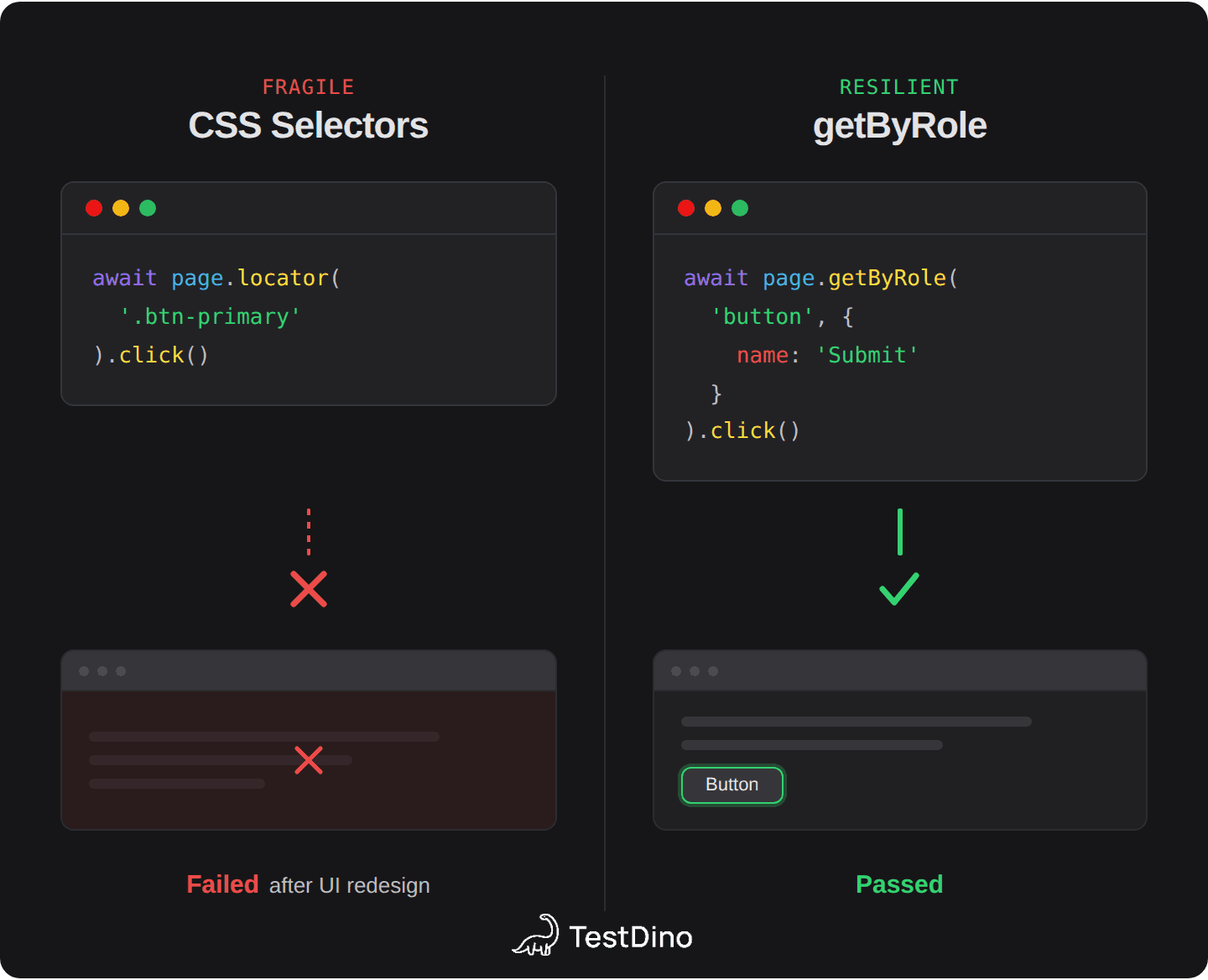
Avoid CSS Classes
This locator is fragile:
page.locator('.btn-primary');
Why?
Developers frequently rename:
- CSS frameworks
- Utility classes
- Styling libraries
For example:
.btn-primary

↓

.btn-filled

↓

.primary-button

↓

.MuiButton-root
Your tests should not depend on styling.
Avoid Dynamic IDs
Many frameworks generate IDs automatically.
Example:
<input id="input-49283">
Tomorrow:
<input id="input-83912">
Never build locators using generated IDs unless they are guaranteed to remain stable.
When to Use Test IDs
Sometimes an element has:
- No label
- No text
- No accessible role
In those cases, use dedicated test attributes.
Example:
<button data-testid="checkout-button">
Playwright:
await page.getByTestId('checkout-button').click();
Test IDs are specifically designed for automation and are unaffected by visual redesigns.
Narrow the Search Scope
Instead of searching the entire page:
page.getByText('Delete');
Limit the search to a specific container.
const userCard = page.getByRole('article', {
    name: 'John Smith'
});

await userCard
    .getByRole('button', { name: 'Delete' })
    .click();
Scoped locators reduce ambiguity and improve reliability.
Handle Repeated Elements
Suppose a table contains multiple Edit buttons.
Avoid:
page.getByText('Edit');
Instead:
page
    .getByRole('row', {
        name: /Alice/
    })
    .getByRole('button', {
        name: 'Edit'
    });
The locator now clearly identifies the correct button.
Build Reusable Locator Methods
Rather than repeating locators throughout your tests:
page.getByRole('button', {
    name: 'Save'
});
Centralise them inside Page Objects.
class SettingsPage {

    readonly saveButton;

    constructor(page: Page) {
        this.saveButton =
            page.getByRole('button', {
                name: 'Save'
            });
    }

}
Updating a locator later requires changing only one location.
Handle Localisation
Applications supporting multiple languages present another challenge.
Instead of:
page.getByText('Login');
Prefer:
page.getByTestId('login-button');
or
page.getByRole('button');
combined with a stable accessible name if available.
This prevents failures when the UI language changes.
Verify Locator Uniqueness
A locator should match exactly one element.
Example:
await expect(
    page.getByRole('button', {
        name: 'Submit'
    })
).toHaveCount(1);
Ambiguous locators can cause intermittent failures when additional matching elements appear.
Common Locator Priority
A practical priority order for Playwright:
| Priority | Locator |
|---|---|
| ⭐⭐⭐⭐⭐ | getByRole() |
| ⭐⭐⭐⭐⭐ | getByLabel() |
| ⭐⭐⭐⭐ | getByPlaceholder() |
| ⭐⭐⭐⭐ | getByText() |
| ⭐⭐⭐⭐ | getByTestId() |
| ⭐⭐⭐ | CSS Selector |
| ⭐ | XPath |
Whenever possible, prefer semantic locators over structural ones.
Real-World Example
Fragile Locator
await page.locator(
    '.header > div:nth-child(2) > button'
).click();
A redesign changes the header layout.
The test fails immediately.
Robust Locator
await page.getByRole(
    'button',
    { name: 'Checkout' }
).click();
Developers can:
- Move the button
- Change CSS
- Replace layouts
- Switch UI frameworks
As long as the button still represents Checkout, the test continues to work.
Best Practices
1. Think Like a User
Locate elements based on what users see and interact with, not how developers structure the HTML.
2. Avoid Implementation Details
Stay away from:
- CSS classes
- Dynamic IDs
- Element indexes
- Deep XPath expressions
3. Prefer Accessibility
Use:
getByRole()getByLabel()getByPlaceholder()
These locators naturally survive many UI refactors.
4. Use Test IDs When Necessary
For complex components or dynamic interfaces, dedicated data-testid attributes provide long-term stability.
5. Keep Locators Centralised
Store locators inside Page Objects or reusable component classes to simplify maintenance.
6. Keep Locators Specific
A good locator should identify exactly one element and avoid relying on positional indexes.
7. Review Locators During Code Reviews
Treat locator quality as part of your automation standards. A well-designed locator today can save hours of maintenance after the next UI redesign.
Conclusion
A reliable automation framework isn't just about writing good test cases—it's also about choosing the right locators. Fragile selectors tied to HTML structure, CSS classes, or dynamic IDs inevitably break as applications evolve.
By prioritising semantic locators such as getByRole(), getByLabel(), and getByTestId(), you build tests that reflect how users interact with the application rather than how the DOM is implemented. Combined with Page Object Models and thoughtful locator design, this strategy dramatically reduces maintenance costs and ensures your automation suite remains stable through redesigns, refactoring, and framework migrations.
Remember: the best locator is not the shortest one—it's the one that still works after the next redesign.